Documentation
Troubleshooting
🛡️Windows Defender Exclusions
🛡️Windows Defender Exclusions
To ensure Sudden Attack runs properly without interference, you may need to add the game folder to the Windows Defender exclusions list.
This prevents false positives and unwanted blocking of game files.
1. Open Windows Security
-
Press
Windows + S - Search for Windows Security
- Open the application
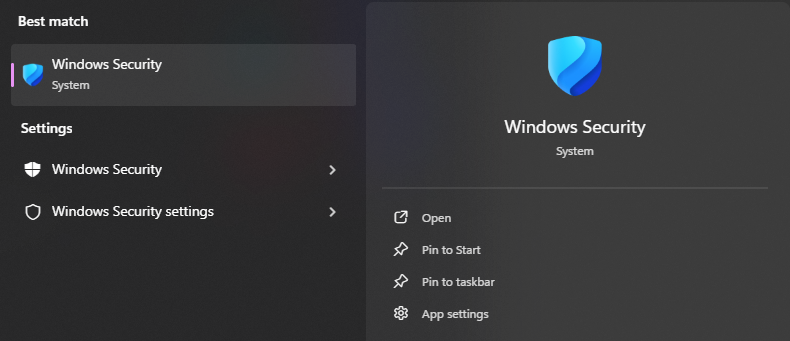
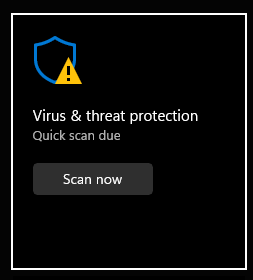
2. Go to Virus & Threat Protection
- Click on "Virus & threat protection"
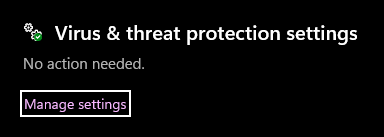
3. Open Manage Settings
- Scroll down to "Virus & threat protection settings"
- Click "Manage settings"
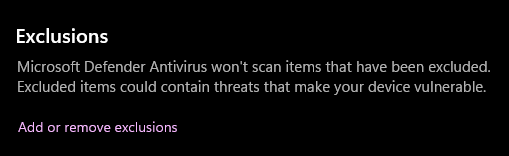
4. Scroll to Exclusions
- Scroll down to the Exclusions section
- Click "Add or remove exclusions"
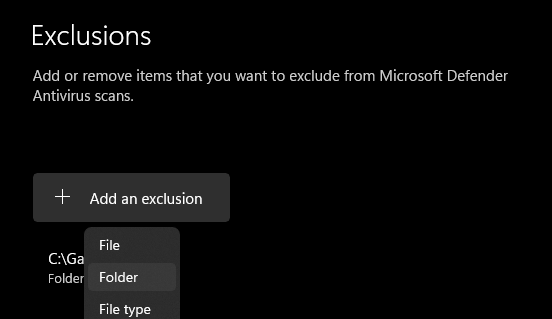
5. Add Folder
- Click "Add an exclusion"
- Select Folder
- Choose your Sudden Attack installation directory
If problems persist, check other sections in the documentation for additional troubleshooting steps.